Fix "No Audio" or Sound Issues on IPTV (Audio Sync Fix)
Picture but no sound? Audio out of sync? Here are the quick fixes for common IPTV audio problems on Firestick and Smart TV.
IPTV Troubleshooting Guides: Error Fixes & 24/7 Support
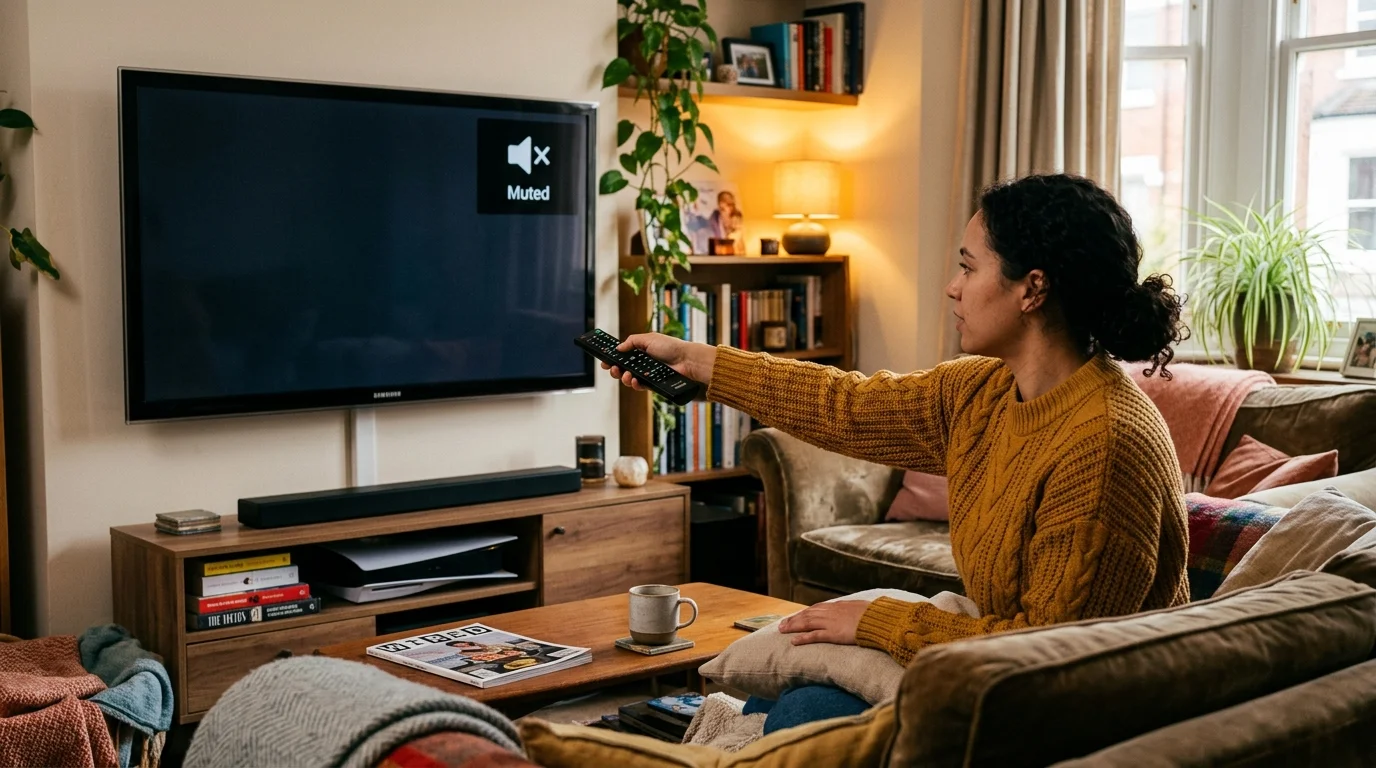
Silence isn't Golden
There is nothing annoying than settling down for a movie and getting... silence. Or worse, the audio is 2 seconds behind the lips moving.
Here is how I fix 99% of sound issues on IPTV.
1. The "Decoder" Trick
Different channels use different audio formats (AAC, AC3, Dolby). Sometimes your player app gets confused.
In IPTV Smarters:
- Go to Settings.
- Select Player Settings.
- Change "Hardware Decoder" to Software Decoder (or vice versa).
- Restart the stream.
In TiviMate:
- Long press Select on the channel.
- Go to Sound settings.
- Toggle "Audio Passthrough".
2. Fixing Lip Sync (Audio Delay)
If the audio is out of sync, you don't need to suffer.
In VLC / External Players:
There is usually a specific button (looks like an equalizer) where you can add "Audio Delay". Add +500ms or -500ms until it matches.
In TiviMate:
While watching, open the bottom menu, select the Audio icon, and adjust the "Audio Offset".
3. Firestick Sound Settings
Sometimes the Firestick tries to force "Dolby Digital Plus" on a TV that doesn't support it.
- Go to Firestick Settings > Display & Sounds > Audio > Surround Sound.
- Change it to PCM or Stereo.
- This forces a basic audio signal that works on pretty much every TV.
Still stuck? Send a message to our WhatsApp Support and we can check the stream source for you.
HDMI Audio Settings: The Most Common Cause
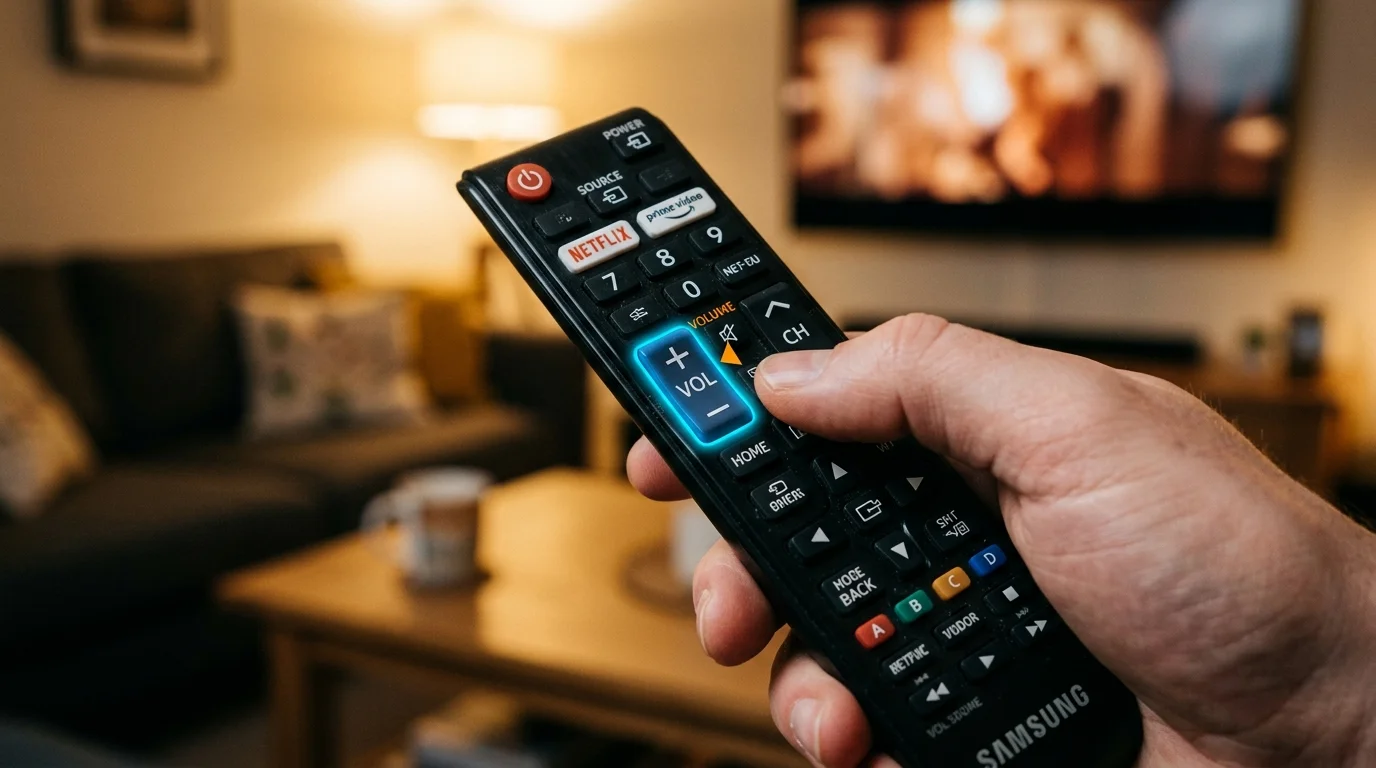
HDMI carries both video and audio. If your TV receives video but no sound, start here:
- TV Audio Output Settings: Go to your TV's Settings > Sound > HDMI Audio Output. Make sure it is set to PCM (not Bitstream or Dolby) for maximum compatibility with IPTV streams.
- HDMI ARC/eARC (if using a soundbar): Check your soundbar or AV receiver is set to the correct HDMI input. Try switching HDMI cables — a faulty cable causes intermittent audio loss.
- CEC Settings: Consumer Electronics Control can sometimes mute audio automatically. Disable HDMI-CEC on both the TV and the soundbar and test again.
On Firestick, navigate to Settings > Display & Sounds > Audio > Dolby Digital Output and set it to PCM (stereo) initially. PCM works with all TVs; switch back to Dolby once you have confirmed audio works.
App Audio Output Settings
Each IPTV app has its own audio settings that can conflict with your TV:
TiviMate: Go to Settings > Player > Decoder. If you see "No Audio" on specific channels, change the Audio Player from Hardware to Software (or vice versa). Software decoding handles more codec formats.
IPTV Smarters: Tap the gear icon during playback, select Audio Track, and choose a different track if multiple are available. Some channels carry multiple audio feeds; the default may be commentary in another language or a secondary track with no content.
VLC (fallback player): If your main app has no audio, open the stream in VLC. If VLC has audio, the issue is in your main app's settings — not the stream itself.
Dolby Digital / AC3 Codec Issues
Many UK sports channels (Sky Sports, TNT Sports) broadcast in Dolby Digital 5.1 (AC3). If your device or app cannot decode AC3 natively, you get silence.
- Firestick 4K / 4K Max: Supports AC3 hardware decoding. Enable in Settings > Display & Sounds > Audio > Dolby Digital Output > Dolby Digital Plus.
- Older Firestick (1st/2nd Gen): May not support AC3 hardware decode. Switch TiviMate to Software decoder and test.
- Smart TVs: If sound drops only on sports channels, your TV's media player may not handle AC3. Use TiviMate with Software decoding or the ExoPlayer decoder option.
If only certain channels have no audio, it is almost certainly a codec issue. Switching the player decoder from Hardware to Software in your app resolves this 90% of the time.
Router QoS Settings for Consistent Audio
Choppy or intermittently cutting audio (not complete silence) is often a network quality issue — audio packets are arriving out of order or being dropped:
- Log into your router admin panel (usually 192.168.1.1 or 192.168.0.1).
- Find QoS (Quality of Service) or Traffic Management.
- Prioritise your IPTV device (by MAC address) for consistent bandwidth allocation.
- If your ISP router lacks QoS, try a third-party router like the TP-Link Archer AX55 which has robust QoS controls.
Audio dropouts that occur every few minutes but are otherwise fine usually point to WiFi interference rather than the stream itself. Moving your router away from the microwave, or using the 5 GHz WiFi band instead of 2.4 GHz, solves this reliably.
For full audio and video performance, wiring your streaming device via Ethernet is always the most reliable solution — it eliminates packet loss entirely.
Ready to Try Premium IPTV UK?
Experience IPTV UK Elite with a free 24-hour trial. 45,000+ channels, 100,000+ VOD, and 4K quality.
Related Guides
Common IPTV Error Codes Explained
What every error code means and the fastest fix — from 401 Unauthorized to buffering timeouts.
TroubleshootingIPTV Smarters No Video Fix
Resolve black screen and no-video errors in IPTV Smarters Pro on Firestick and Android.
GuidesIPTV UK 24/7 Support
How IPTV UK Elite's round-the-clock WhatsApp support works — what's covered and response times.
More IPTV UK Buying & Info Topics
Keep exploring high-volume IPTV UK search topics to compare providers, troubleshoot faster, and choose the right plan.